
Latest Version
Download NowMore About Epson Stylus NX420 Adjustment Program
Epson Stylus NX420 Adjustment Program: A Comprehensive Guide
The Epson Stylus NX420 is a reliable and efficient all-in-one inkjet printer, combining printing, scanning, and copying functions in one compact design. As with any printer, regular maintenance and proper adjustments are essential to ensure optimal performance and longevity. One key tool for keeping your Epson Stylus NX420 in top condition is the Adjustment Program. This program allows users to perform necessary maintenance tasks, troubleshoot common problems, and reset certain printer settings.
What is the Epson Stylus NX420 Adjustment Program?
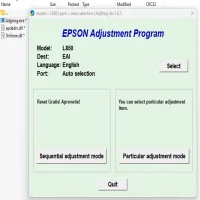
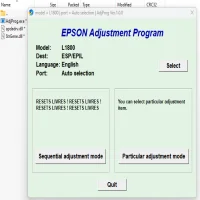
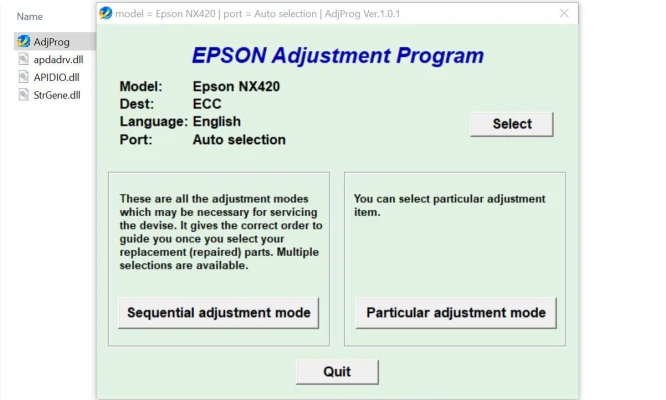
The Epson Stylus NX420 Adjustment Program is a specialized software tool designed to help users perform a range of maintenance operations on their printer. These operations include head cleaning, ink pad resetting, and waste ink counter resets. The adjustment program can be used to solve issues related to ink overflow, paper jams, print quality problems, and more. It is particularly useful when the printer stops working correctly, or the software prompts an error related to the printer’s waste ink tank or print head.
Key Functions of the Adjustment Program
-
Resetting the Ink Pads
- Over time, ink pads inside the printer accumulate waste ink. If these pads become too full, the printer may stop functioning, displaying an error message like "Parts inside your printer are at the end of their service life." The Adjustment Program allows you to reset the ink pad counter, which can temporarily clear this issue. It’s important to monitor the ink pads, as they may need physical cleaning or replacement if they become saturated with ink.
-
Print Head Cleaning
- Inkjet printers, including the Epson Stylus NX420, can experience clogging or misalignment of the print head, which can lead to poor print quality. The Adjustment Program allows you to perform deep cleaning of the print heads, ensuring that no ink residues obstruct the nozzles. This process can help restore the printer’s functionality and improve the quality of printed documents.
-
Ink Counter Reset
- The Epson Stylus NX420 keeps track of how much ink is used during printing tasks. When the printer detects that the ink has been exhausted or nearly depleted, it will often display an error. The Adjustment Program can reset the ink counter, which can be helpful if you want to bypass this warning and continue printing after refilling the ink cartridges.
-
Waste Ink Counter Reset
- Similar to the ink counter, the waste ink counter keeps track of ink that is discarded during cleaning cycles. Resetting this counter using the Adjustment Program can help clear warning messages related to waste ink.
-
Alignment and Calibration
- The program also provides options to align print heads and calibrate scanning components. Regular alignment ensures that your printer maintains high accuracy for printing documents and photos.
How to Use the Epson Stylus NX420 Adjustment Program
Using the Adjustment Program is relatively simple, but it requires some technical know-how. Here’s a step-by-step guide to using the program:
-
Download the SoftwareTo begin, you’ll need to download the Epson Stylus NX420 Adjustment Program from a trusted source. Be cautious when downloading software from third-party websites to avoid malware or unsafe files.
-
Install the ProgramAfter downloading the program, run the installer and follow the on-screen instructions to complete the installation. Once installed, open the program.
-
Connect Your PrinterEnsure that your Epson Stylus NX420 is powered on and connected to your computer via USB or Wi-Fi.
-
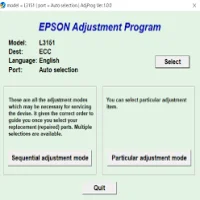
Select the Desired FunctionFrom the main menu of the Adjustment Program, select the maintenance task you want to perform. You can choose from resetting ink pads, cleaning print heads, or resetting counters.
-
Follow the InstructionsThe program will provide clear instructions on how to proceed with the selected operation. For example, if you are resetting the waste ink counter, the program will prompt you to follow steps to ensure the operation is performed correctly.
-
Complete the ProcessAfter following the steps, the program will complete the task and display a confirmation message. It is recommended to run test prints after performing adjustments to ensure everything is functioning as expected.
Precautions and Warnings
While the Epson Stylus NX420 Adjustment Program is a useful tool, there are a few precautions to keep in mind:
- Monitor Waste Ink Levels: Resetting the waste ink counter can be a temporary solution. Over time, waste ink can build up in the pads, leading to ink overflow. Always ensure you clean or replace the ink pads as necessary to avoid further damage to the printer.
- Understand the Risks: Using the Adjustment Program may void your printer’s warranty if not used properly. Make sure to review the terms of your warranty before proceeding with any adjustments.
- Use the Program Responsibly: Resetting counters without performing actual maintenance may only delay the inevitable issues. It’s crucial to address any hardware problems like clogged print heads or full waste ink pads when prompted.
Conclusion
The Epson Stylus NX420 Adjustment Program is an invaluable tool for users seeking to maintain and troubleshoot their printers. By performing essential maintenance tasks like head cleaning, ink pad resetting, and waste ink counter resets, you can prolong the lifespan of your printer and ensure consistent print quality. However, always remember that this program should be used responsibly, and regular physical maintenance should accompany software resets to keep your printer in top working order.
Rate the App
User Reviews


Popular Apps