
Latest Version
Download NowMore About Epson Stylus NX200 Adjustment Program
Epson Stylus NX200 Adjustment Program: A Comprehensive Guide
The Epson Stylus NX200 is a versatile all-in-one inkjet printer that offers printing, scanning, and copying capabilities. However, like many printers, users may encounter issues over time that can affect performance and quality. One of the most effective ways to restore your printer to its optimal condition is by using the Epson Stylus NX200 Adjustment Program.
What is the Epson Stylus NX200 Adjustment Program?
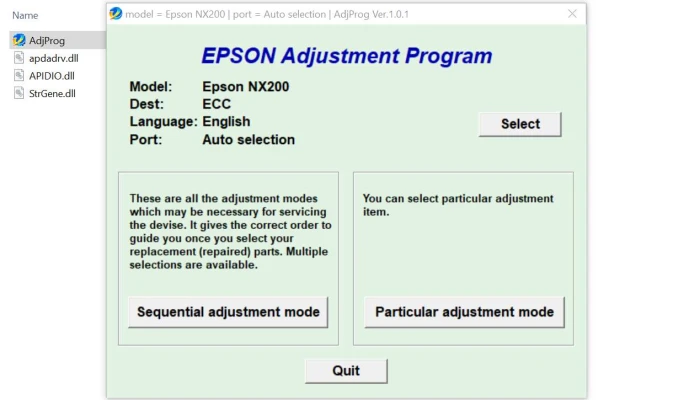
The Epson Stylus NX200 Adjustment Program is a software tool designed to help users fix common printer problems by resetting certain printer settings or performing specific maintenance tasks. It allows you to address issues like ink pad waste, print head alignment, and cartridge errors, ensuring that your printer functions smoothly and efficiently.
While Epson does not officially offer this program for public download, it can be found from various third-party websites. It is essential to be cautious when downloading such software to avoid malware or unsafe downloads.
Key Features of the Epson Stylus NX200 Adjustment Program
-
Ink Pad Reset: Over time, the ink pads in the printer can become saturated with ink, potentially causing the printer to display an error message and stop working. The adjustment program allows you to reset the ink pad counter, preventing this issue.
-
Head Cleaning and Alignment: The program can help you realign the print head, ensuring that your printed documents and images are clear and sharp. If the printhead is misaligned, it can result in poor print quality or incomplete prints.
-
Waste Ink Counter Reset: The printer keeps track of the amount of ink used, and when the waste ink counter reaches a certain threshold, it triggers a warning or stops printing altogether. This program allows you to reset the counter and clear any warnings.
-
Printer Performance Optimization: The adjustment tool also helps you optimize the overall performance of the printer. This includes adjusting color balance, cleaning clogged nozzles, and resetting the printer’s internal settings to factory defaults.
-
Error Code Fix: If your Epson Stylus NX200 is displaying an error code (e.g., "Waste Ink Pad Full"), the adjustment program can fix these issues by resetting the related parameters.
How to Use the Epson Stylus NX200 Adjustment Program
-
Download the Program: To begin, you’ll need to find a reliable source to download the Epson Stylus NX200 Adjustment Program. Make sure to download from a trusted website to avoid harmful software.
-
Install the Software: After downloading, run the installation file. Follow the on-screen instructions to complete the installation process.
-
Connect the Printer: Ensure that your Epson Stylus NX200 printer is connected to the computer via USB or Wi-Fi, depending on your setup.
-
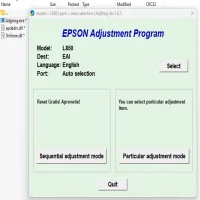
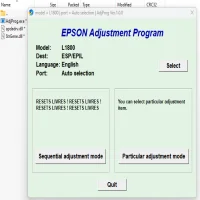
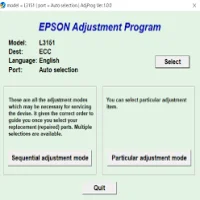
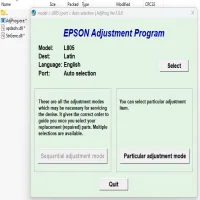
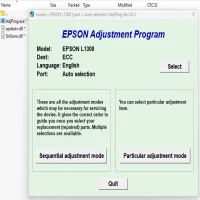
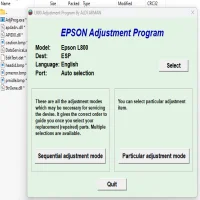
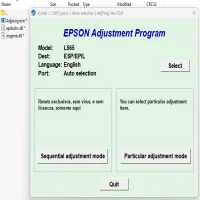
Open the Program: Launch the Epson Stylus NX200 Adjustment Program. The software will detect your printer model automatically. If it doesn’t, you may need to select the model manually from the list.
-
Choose the Required Adjustment: The program offers a variety of adjustment options. Select the task you want to perform, such as resetting the waste ink pad or performing a print head alignment.
-
Follow the Instructions: The program will guide you through each step of the process. For tasks like resetting the ink pad counter or waste ink counter, you will be asked to confirm the action before proceeding.
-
Finish the Adjustment: After completing the necessary tasks, the program will provide feedback on the process’s success or if any issues were detected. You can then disconnect the printer and restart it.
When to Use the Epson Stylus NX200 Adjustment Program
You should consider using the Epson Stylus NX200 Adjustment Program when:
- Your printer is showing a waste ink pad error.
- Print quality has deteriorated, and other methods like cleaning the print heads haven’t worked.
- Your printer is stuck in an error loop or has stopped printing altogether.
- You want to perform maintenance tasks to prevent future problems.
Precautions and Warnings
While the Epson Stylus NX200 Adjustment Program is an excellent tool for printer maintenance, it’s important to use it carefully. Improper use of the program can lead to further issues, especially if you reset the wrong settings. Be sure to:
- Backup settings before making changes.
- Only reset the ink pad or waste ink counter when necessary.
- Avoid using third-party adjustment programs that might contain harmful files or malware.
Conclusion
The Epson Stylus NX200 Adjustment Program is a valuable tool for restoring and maintaining the performance of your printer. It helps resolve common issues such as ink pad saturation, print head misalignment, and waste ink counter resets. By using the program correctly and cautiously, you can extend the life of your Epson printer and ensure it continues to deliver high-quality prints.
Rate the App
User Reviews


Popular Apps