Latest Version
January 04, 2025
EPSON
L Series
Windows
1,975
Freemium
Epson L850 Adjustment Program
Report a Problem
More About Epson L850 Adjustment Program ( Resetter )
Epson L850 Adjustment Program (Resetter): Complete Step-by-Step Guide
The Epson L850 is a powerful all-in-one photo printer, widely used by photographers and small businesses for its excellent print quality and low ink costs. Like other Epson printers, it occasionally displays the “Service Required” or “Waste Ink Pad Full” error after heavy use.
This problem can be easily fixed using the Epson L850 Adjustment Program, commonly known as the Resetter Tool.
This article explains what the program is, how it works, and how to use it safely to reset your printer without taking it to a service center.
What Is the Epson L850 Adjustment Program?
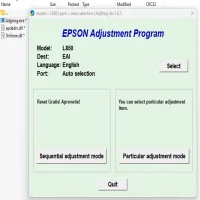
The Epson L850 Adjustment Program is a utility software designed to reset the waste ink pad counter and other maintenance data of the printer. When Epson printers collect too much waste ink during head cleaning cycles, the internal counter reaches a limit and disables printing to prevent ink overflow.
The adjustment program resets this counter to zero, allowing the printer to function normally again — without showing the “Parts inside your printer are at the end of their service life” message.
Main Functions:
-
Reset Waste Ink Pad Counter
-
Clear “Service Required” error
-
Perform Head Cleaning & Alignment
-
Check or reset Ink Levels
-
Run Maintenance Diagnostics
Why You Need the Epson L850 Resetter
Here’s why this software is useful for Epson users:
-
🧩 Fix “Waste Ink Pad Full” Errors Instantly
Get your printer working again in minutes without replacing parts. -
💰 Save Time & Money
Avoid unnecessary service center visits and repair costs. -
⚙️ Do-It-Yourself Maintenance
Even non-technical users can easily use the resetter tool. -
🖨️ Maintain Print Quality
The program includes head cleaning and alignment functions to improve print results. -
🔧 Extend Printer Lifespan
Proper resetting and maintenance ensure long-term, stable performance.
How to Use the Epson L850 Adjustment Program
Step 1: Download the Program
Get the Epson L850 Adjustment Program (Resetter) from a trusted source. Avoid downloading from unknown or suspicious websites.
Step 2: Install or Extract the File
After downloading the ZIP file, extract it and install the software. Some antivirus tools may flag it falsely — temporarily disable them if necessary.
Step 3: Connect the Printer
Attach your Epson L850 printer to your computer via USB and make sure it’s powered on.
Step 4: Launch the Adjustment Program
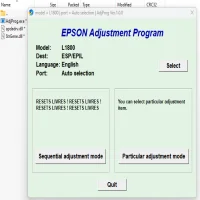
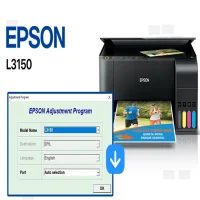
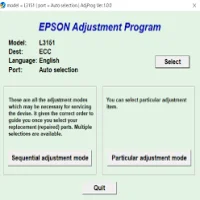
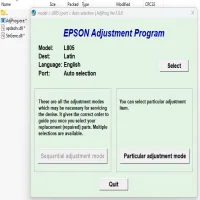
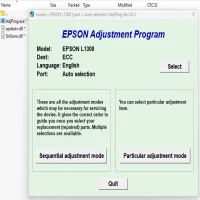
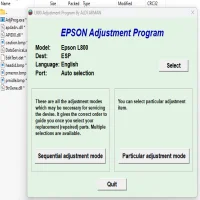
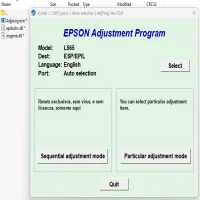
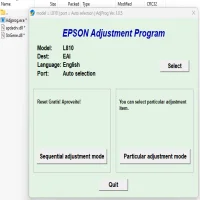
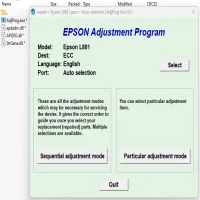
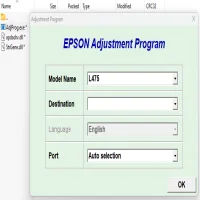
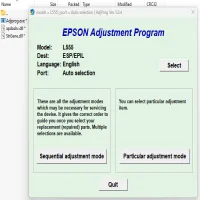
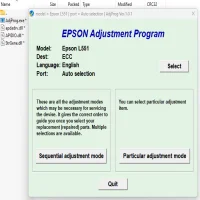
Open the software and select Epson L850 as your model. Then click on “Particular Adjustment Mode.”
Step 5: Reset the Waste Ink Pad Counter
-
Choose “Waste Ink Pad Counter”
-
Click Check → Initialization → Finish
Wait until the program completes the reset process.
Step 6: Restart & Test the Printer
After the reset, restart your printer. Try printing a test page — the “Service Required” message should now be gone.
Important Warnings & Maintenance Tips
⚠️ Physical Waste Ink Pad Replacement Required:
Resetting only clears the software counter — it does not clean or replace the actual waste ink pad. Replace or clean the pad periodically to prevent ink leakage.
⚠️ Warranty Disclaimer:
The Epson L850 Adjustment Program is not an official Epson software. Using it may void your printer’s warranty.
⚠️ Avoid Repeated Resets:
Don’t repeatedly reset the counter without replacing or cleaning the pads. Doing so may cause permanent damage.
⚠️ Backup Settings:
Always back up your printer settings before running the adjustment tool.
Benefits of Using the Epson L850 Adjustment Program
✅ Instantly fix the “Service Required” or “Waste Ink Pad Full” message
✅ Save time and avoid unnecessary technician visits
✅ Restore full printer functionality
✅ Perform additional maintenance easily
✅ Prolong your printer’s lifespan
Frequently Asked Questions (FAQs)
Q1: Is the Epson L850 Resetter free to use?
Yes, several trusted sites offer free versions of the resetter tool.
Q2: Can I use the resetter on Windows 11?
Yes, the latest version of the Epson L850 Adjustment Program works on Windows 7, 8, 10, and 11.
Q3: Do I need to replace the waste ink pads after resetting?
Yes, the reset is temporary. You should clean or replace the ink pads regularly.
Q4: Is it safe to use?
Yes, if downloaded from a reliable source and used according to instructions.
Conclusion
The Epson L850 Adjustment Program (Resetter) is an essential utility for fixing common printer issues like “Waste Ink Pad Full” and “Service Required.”
By following the simple steps above, you can quickly restore your printer to working condition and avoid unnecessary downtime.
Always use the resetter responsibly and maintain your printer properly to ensure long-lasting performance and high-quality printing.
Rate the App
User Reviews

Popular Apps