

Latest Version
More About Epson Expression Home XP-33 Resetter
Epson Expression Home XP-33 Resetter: A Guide to Restoring Your Printer's Performance
Epson printers are known for their reliability and excellent print quality, but like all machines, they can occasionally face technical issues. One common problem is the "Waste Ink Pad Error," where the printer's waste ink pads become full. When this happens, your Epson Expression Home XP-33 may stop functioning properly. Thankfully, using a resetter tool, you can fix this issue and restore your printer to its original condition. In this article, we will guide you on how to use an Epson Expression Home XP-33 resetter to reset your printer and get it back to working like new.
Understanding the Need for a Resetter
The Epson Expression Home XP-33, like many other Epson printers, comes with a waste ink pad that absorbs excess ink during printing tasks. Over time, these pads can fill up and trigger an error message, preventing the printer from working. This issue is common across many inkjet printers, especially after extended use. Instead of replacing the printer or spending money on repairs, you can use a resetter tool to reset the printer's internal counter for the waste ink pad, effectively "clearing" the error and allowing you to continue using the device.
What is a Resetter Tool?
A resetter tool is a software program that can reset your Epson printer’s internal memory. This memory tracks the amount of ink absorbed by the waste ink pad, and once it reaches a certain threshold, the printer triggers an error message. By using the resetter, you can bypass this restriction and resume printing. These tools are readily available online, and many of them are free or come at a minimal cost.
Steps to Use the Epson Expression Home XP-33 Resetter
Before starting the process, make sure you have the following:
- A computer with a Windows or macOS operating system.
- A USB cable to connect the Epson printer to your computer.
- A reliable internet connection to download the necessary software.
Now, follow these steps to reset your Epson Expression Home XP-33:
1. Download the Resetter Tool
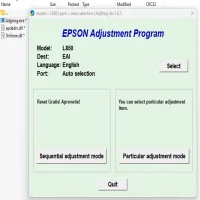
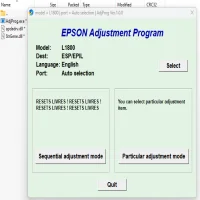
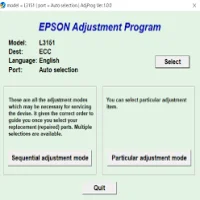
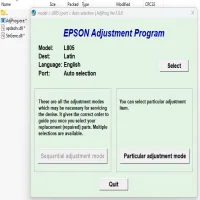
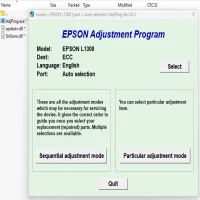
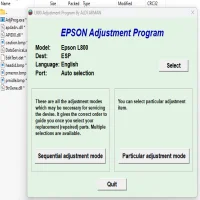
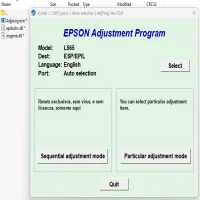
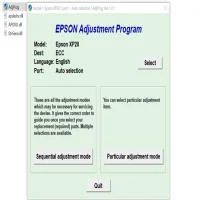
There are several resetter tools available for the Epson Expression Home XP-33. One of the most popular options is the Epson Adjustment Program, which is specifically designed for resetting waste ink pad counters. Download the tool from a trusted source (usually a reputable third-party website) and install it on your computer.
2. Connect Your Printer
Ensure that your Epson Expression Home XP-33 is properly connected to your computer via USB. Make sure the printer is powered on, as this is necessary for the reset process.
3. Open the Resetter Tool
Once installed, open the resetter tool on your computer. You may be prompted to select your printer model, so make sure you choose "Epson Expression Home XP-33" from the list.
4. Enter Service Mode
To access the reset function, you'll need to put your printer into service mode. This can usually be done by following these steps:
- Turn off your printer.
- Press and hold the "Reset" button, then power on the printer while continuing to hold the button for a few seconds. (Check the printer’s manual for any model-specific instructions.)
5. Reset Waste Ink Pad Counter
Once your printer is in service mode, navigate to the "Waste Ink Pad Reset" option in the resetter tool. Click on it to initiate the reset. The tool will begin to communicate with your printer, clearing the waste ink pad counter.
6. Restart Your Printer
After the reset is complete, turn off the printer and then turn it back on. The error message should be gone, and your Epson Expression Home XP-33 should be functioning as usual.
Precautions and Tips
- Backup Your Data: While resetting the printer, make sure you back up any important documents or settings, as the process may reset certain configurations.
- Clean the Waste Ink Pad: While the resetter tool is effective in clearing the error, it's always a good idea to clean or replace the waste ink pad if possible. Over time, the waste ink can accumulate and affect your printer's performance.
- Use Reputable Software: Avoid using pirated or unverified resetter tools, as these may damage your printer or contain malware. Always choose software from trusted sources.
- Check for Updates: Ensure that you are using the latest version of the resetter tool for compatibility and security reasons.
Conclusion
The Epson Expression Home XP-33 resetter tool is a handy solution to an otherwise frustrating issue that many Epson users face. By following the steps outlined above, you can quickly fix the waste ink pad error and extend the life of your printer. If the problem persists, consider having a professional technician inspect your printer, or replace the waste ink pad for long-term results.
This simple yet effective solution can save you time and money, allowing you to continue printing without the need for costly repairs or replacement.
Rate the App
User Reviews



Popular Apps