

Latest Version
More About Epson Expression Home XP-205 Resetter
Epson Expression Home XP-205 Resetter: A Complete Guide
The Epson Expression Home XP-205 is a compact and efficient printer designed for home users seeking a cost-effective solution for everyday printing needs. While the device is renowned for its reliable performance, users may encounter situations where the printer's ink pad counter reaches its limit, resulting in an error message and a halt in operation. This is where the resetter tool comes into play.
In this article, we’ll explore what a resetter tool is, how it works, and the steps to reset your Epson Expression Home XP-205 efficiently.
What Is a Resetter Tool?
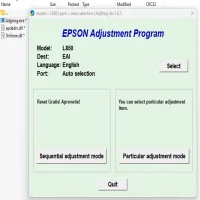
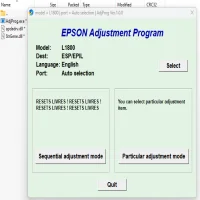
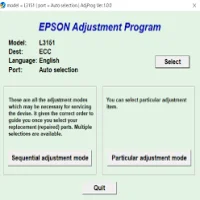
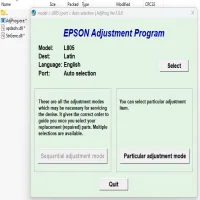
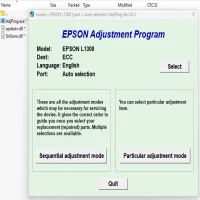
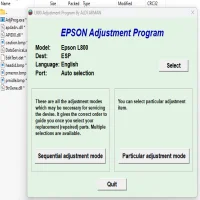
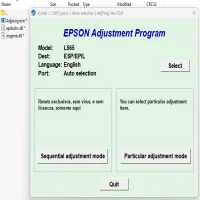
A resetter tool is a specialized software application designed to clear the waste ink pad counter of an Epson printer. Epson printers are programmed with a built-in waste ink counter that tracks the volume of ink absorbed by the printer’s waste ink pad. When this counter hits a predefined limit, the printer may display an error such as “Service Required” or stop functioning altogether.
The resetter tool essentially reprograms the printer, resetting the counter back to zero and restoring normal functionality without replacing the ink pads.
Why Use a Resetter Tool for the XP-205?
- Cost Efficiency: Replacing the waste ink pad or taking your printer to a service center can be expensive. The resetter tool provides a cost-effective alternative.
- Convenience: Resetting your printer at home saves time and effort compared to shipping it for repairs.
- Sustainability: Extending the life of your printer reduces electronic waste and contributes to environmental conservation.
Key Features of the XP-205 Resetter Tool
- Compatible with Windows operating systems.
- Easy-to-use interface suitable for beginners.
- Resets waste ink pad counters with a few simple clicks.
- Supports multiple Epson models, including the XP-205.
How to Reset the Epson Expression Home XP-205
Step 1: Download the Resetter Tool
- Search online for a trusted source to download the Epson XP-205 resetter tool. Ensure the website is reliable and free from malicious software.
Step 2: Prepare Your Printer
- Turn off the printer and disconnect it from your computer.
- Reconnect the printer and switch it back on.
Step 3: Install the Resetter Tool
- Install the software on your computer. Follow the on-screen instructions to complete the installation process.
Step 4: Run the Resetter Tool
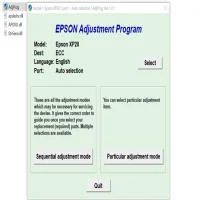
- Launch the resetter tool and select your printer model (XP-205) from the dropdown menu.
Step 5: Reset the Waste Ink Counter
- Choose the “Reset Waste Ink Pad Counter” option.
- Follow the prompts to reset the counter.
Step 6: Restart the Printer
- After the reset is complete, restart your printer. The error message should now be cleared, and your printer will function as normal.
Important Notes
- Backup Your Data: Before using any resetter tool, ensure you have a backup of any important documents or settings.
- Use Genuine Software: Avoid using pirated or unverified software, as it may harm your device or compromise security.
- Understand the Risks: Resetting the ink counter without addressing the waste ink pad can lead to ink overflow, damaging the printer. Regular maintenance is recommended.
Conclusion
The Epson Expression Home XP-205 resetter tool is an invaluable solution for resolving waste ink pad errors and prolonging the life of your printer. By following the steps outlined above, you can efficiently reset your printer and save both time and money. However, always prioritize using genuine tools and maintaining your printer to ensure long-term reliability.
With the right approach, your XP-205 will continue to deliver high-quality prints for years to come!
Rate the App
User Reviews



Popular Apps