Latest Version
More About Epson Expression Home XP-300 Resetter
Epson Expression Home XP-300 Resetter: A Comprehensive Guide
The Epson Expression Home XP-300 is a popular all-in-one printer known for its versatility, affordability, and compact design. However, like all printers, it is prone to issues such as waste ink pad counter overflow, which can cause the printer to stop functioning. This is where a resetter comes into play. A resetter is a tool that allows users to reset the printer’s internal counter, specifically the waste ink pad counter, and bring the printer back to working condition without needing to replace the internal components.
In this article, we will guide you through the process of resetting your Epson Expression Home XP-300, helping you get the most out of your printer while saving money on repairs or replacements.
What is a Printer Resetter?
A printer resetter is a software tool designed to reset a printer’s internal counters, such as the waste ink pad counter. Over time, printers accumulate ink in waste pads, which are designed to absorb ink during cleaning cycles. When the waste ink pad reaches its maximum capacity, the printer stops working to prevent ink overflow. The resetter tool bypasses this issue by resetting the internal counter, allowing the printer to continue printing.
Why Do You Need to Reset Your Epson Expression Home XP-300?
If you’ve encountered an error indicating that the waste ink pads are full or your printer has stopped working altogether, the internal waste ink pad counter has reached its limit. In such cases, you can use the Epson Expression Home XP-300 resetter to clear the counter and restore functionality.
Step-by-Step Guide to Reset the Epson Expression Home XP-300
Step 1: Download the Epson XP-300 Resetter Software
The first step is to download the resetter software from a reliable source. Make sure the software is specifically designed for the Epson XP-300 model to avoid compatibility issues.
Step 2: Install the Resetter Software
Once downloaded, locate the installer file and follow the on-screen instructions to install the software on your computer. Ensure that your printer is connected to the computer via USB or Wi-Fi during the installation process.
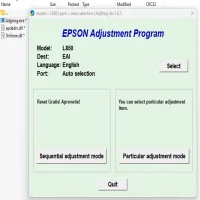
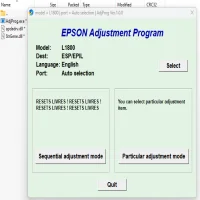
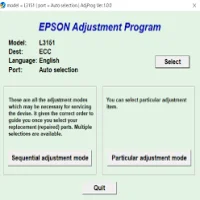
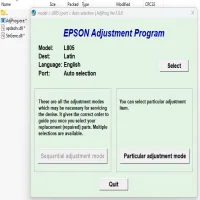
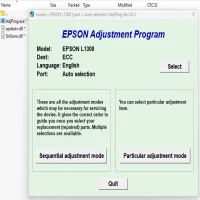
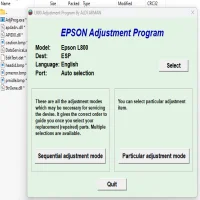
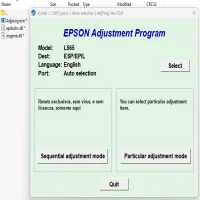
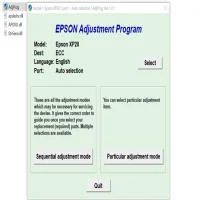
Step 3: Run the Resetter Software
After installation, launch the resetter software. You may be prompted to select your printer model from a list. Choose "Epson Expression Home XP-300" from the available options.
Step 4: Enter the Epson XP-300 Service Mode
To enter the service mode, follow these steps:
- Turn off your printer.
- Hold down the "Home" and "Power" buttons simultaneously.
- While holding these buttons, press the "Stop" button for 3 seconds.
- Release all buttons. The printer should now be in service mode.
Step 5: Select "Waste Ink Pad Counter" in the Software
In the resetter software, navigate to the section labeled "Waste Ink Pad Counter" or something similar. This is the setting that controls the ink waste pad’s internal counter.
Step 6: Reset the Waste Ink Pad Counter
Click on the "Reset" button to reset the waste ink pad counter. This will clear the error message and allow the printer to resume normal operations.
Step 7: Test the Printer
Once the reset is complete, test your printer to ensure that it is working properly. You should no longer see the error regarding the waste ink pads being full.
Step 8: Exit Service Mode
To exit service mode, simply turn off the printer and then turn it back on. The printer should now be fully functional.
Important Considerations
- Waste Ink Pads: The resetter does not physically clean the waste ink pads. If your printer continues to show errors after resetting, it may be necessary to clean or replace the waste ink pads manually.
- Software Legitimacy: Always download resetter software from trusted sources. Using malicious software can cause damage to your printer and computer.
- Printer Warranty: Resetting your printer might void its warranty. If your printer is still under warranty, consider contacting Epson support for assistance.
- Legal Implications: Be aware that using resetter software may not be supported by Epson, and it could be against the manufacturer’s terms of service.
Conclusion
The Epson Expression Home XP-300 resetter tool is an efficient way to bypass the waste ink pad counter overflow issue and restore your printer’s functionality. By following the steps outlined in this guide, you can get your printer up and running again without incurring costly repairs or replacements. Always proceed with caution and ensure that you’re using legitimate resetter software to avoid any potential issues.
Rate the App
User Reviews



Popular Apps