

Latest Version
More About Epson Expression Home XP-215 Resetter
Epson Expression Home XP-215 Resetter: A Guide to Restoring Printer Settings
The Epson Expression Home XP-215 is a popular all-in-one inkjet printer designed for home use, offering features such as wireless printing, scanning, and photocopying. Over time, users might encounter issues like the printer’s ink pads becoming full or error messages due to various technical glitches. When these problems arise, the printer may stop working properly, and that's when a reset might be necessary. In this article, we’ll guide you through the process of resetting your Epson Expression Home XP-215 to restore it to its original settings and ensure smooth performance.
Why Reset Your Epson Expression Home XP-215?
Before diving into the resetting process, it’s important to understand why you might need to reset your printer:
-
Ink Pad Full Error: Over time, the ink pads inside your printer collect ink from printhead cleaning cycles. When these pads reach their capacity, you’ll receive an error, often indicating that the printer can no longer perform certain tasks.
-
Firmware or Software Glitches: Sometimes, the printer's software or firmware might encounter issues, such as the printer not responding to commands, paper jams that can’t be cleared, or printing errors.
-
Restore Default Settings: A reset can also help when you want to return your printer to its factory settings, for example, when selling or passing on the printer to someone else.
Steps to Reset Epson Expression Home XP-215
To perform a reset on your Epson Expression Home XP-215 printer, follow these detailed steps:
Step 1: Turn Off the Printer
Make sure your printer is powered off before proceeding with the reset. You can do this by pressing the power button.
Step 2: Enter the Epson Service Mode
- Press and hold the "Home" button located on the printer’s control panel.
- While holding the "Home" button, press the "Power" button and keep both buttons pressed for about 5 seconds.
- The printer should enter a special service mode. You might notice that the printer’s lights start blinking.
Step 3: Use Epson Resetter Software
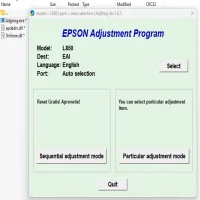
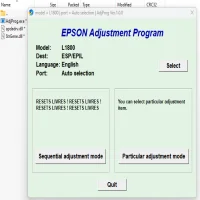
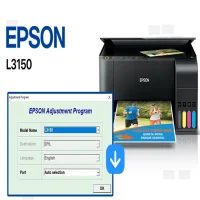
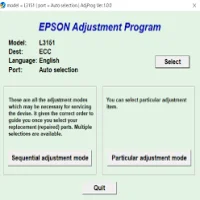
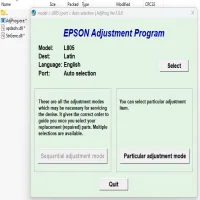
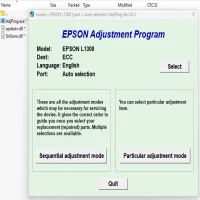
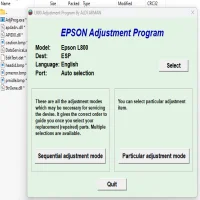
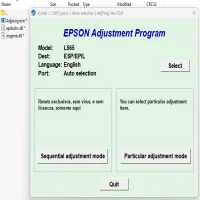
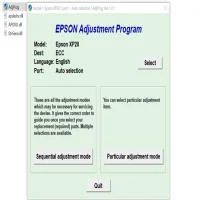
To fully reset the printer, you’ll need Epson’s official service software, known as the Epson Resetter. This software can be downloaded from various third-party websites, but it’s always advisable to proceed with caution and download only from trusted sources. Here’s how you can use the software:
- Download and install the Epson Resetter on your computer (make sure your printer is connected to the PC via USB or wireless network).
- Once installed, run the software and follow the on-screen instructions to reset the printer’s ink pad counter or to perform a full factory reset.
Step 4: Reset the Ink Pad Counter (Optional)
If the issue is related to full ink pads, the Epson Resetter software allows you to reset the ink pad counter. This step clears the error message, but it’s important to note that it does not physically clean or replace the ink pads. You should only do this if you're confident the printer’s ink pads are not saturated beyond a point where they could damage the printer.
- In the software, select the option that corresponds to resetting the ink pad counter.
- Once completed, your printer should no longer display the "ink pad full" error.
Step 5: Return to Factory Settings (Optional)
If you want to restore the printer to its factory settings, this can also be done via the Epson Resetter software. Look for an option such as "Factory Reset" or "Restore Default Settings" and follow the prompts.
Step 6: Test Your Printer
After performing the reset, power the printer off and then on again. Print a test page or perform a scan to ensure that the printer is working as expected. The printer should no longer show error messages, and it should resume normal operation.
Important Notes and Warnings
-
Be Cautious with Third-Party Software: While Epson Resetter software is essential for certain resets, always be careful when downloading from unofficial sources. Look for reviews and ensure the software is safe to use.
-
Ink Pads Maintenance: If you reset your printer's ink pad counter but the pads are still full, consider taking the printer to a certified technician for professional maintenance. Continuing to use the printer with full ink pads can lead to ink leakage and further damage.
-
Warranty Considerations: If your printer is still under warranty, it’s a good idea to consult with Epson’s customer support before performing a reset. Some warranty terms may be voided if the printer is tampered with.
Conclusion
Resetting your Epson Expression Home XP-215 printer can be a simple and effective solution for resolving issues like ink pad errors or software glitches. By following the outlined steps and using the Epson Resetter software, you can restore your printer to its original settings and keep it running smoothly. However, be sure to proceed carefully and seek professional help if needed to avoid causing permanent damage to your printer.
Rate the App
User Reviews



Popular Apps