
Latest Version
Download NowMore About Epson DX4800 Resetter
Epson DX4800 Resetter: A Comprehensive Guide to Resetting Your Printer
The Epson DX4800 is a popular inkjet printer, widely appreciated for its reliable performance and high-quality prints. However, like many other printers, it can occasionally encounter issues related to ink pads, waste counters, or other internal settings that may require resetting. In this guide, we will explore what a "resetter" is, how it works with the Epson DX4800, and provide a step-by-step approach to reset your printer safely and effectively.
What is an Epson DX4800 Resetter?
A resetter is a software tool or procedure used to restore a printer's internal settings to its factory default. In the case of the Epson DX4800, a resetter is typically used when the printer encounters specific errors such as "Ink pad is at the end of its service life," or when waste ink counters have been exceeded. These errors are triggered to protect the printer from overflowing ink and causing damage to internal components.
The resetter software works by manually adjusting the waste ink counter, which is a record kept by the printer to monitor ink usage and waste. Once reset, the printer can continue to function without displaying errors or limitations related to the ink pad’s capacity.
Why You Might Need a Resetter
There are several reasons why you might need to use a resetter for your Epson DX4800 printer:
-
Waste Ink Pad Overflow: Over time, as your printer prints, excess ink is absorbed by the waste ink pads. These pads can fill up and trigger an error message indicating that the waste ink pad is full.
-
Ink Pad Service Life: The printer may stop working when it detects that the ink pads have reached their service life limit. While this is meant to protect your device, it can be frustrating, especially if the pads are not yet physically full.
-
General Maintenance: Resetting can be useful for general maintenance or troubleshooting, especially if the printer is malfunctioning without any visible signs of physical damage.
How to Use the Epson DX4800 Resetter
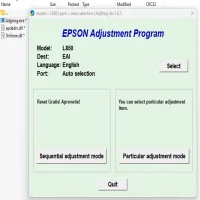
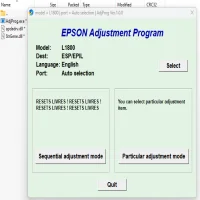
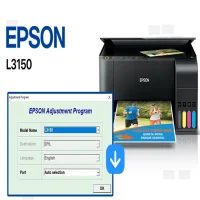
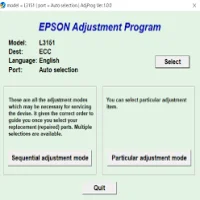
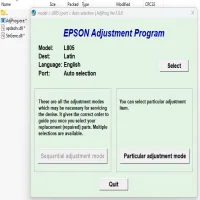
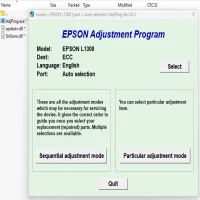
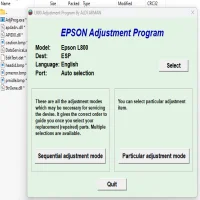
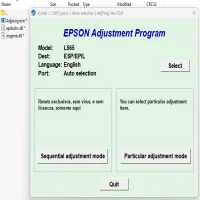
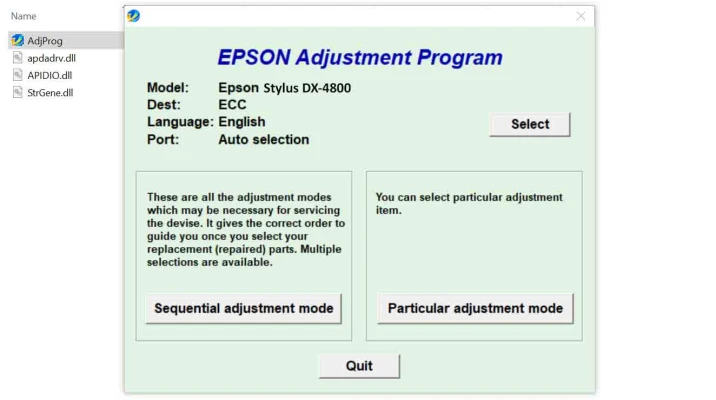
Before proceeding with any resetting process, ensure that you have the correct resetter for the Epson DX4800 model. The most common resetter tool used is the Epson Adjustment Program, which is compatible with various Epson printers, including the DX4800.
Here’s a simple guide to resetting your printer:
Step 1: Download the Epson Resetter Software
First, download the Epson Adjustment Program from a trusted source. Ensure that you are downloading the correct version for your printer model (Epson DX4800).
Step 2: Install the Software
Once downloaded, install the resetter software on your computer. Follow the installation instructions provided by the software package. Be sure to disable any antivirus software during installation, as it may interfere with the process.
Step 3: Connect the Printer
Connect your Epson DX4800 to the computer using the USB cable. Ensure the printer is turned on and ready to communicate with the computer.
Step 4: Run the Adjustment Program
Open the Epson Adjustment Program on your computer. The software will prompt you to select your printer model from a list. Choose "Epson DX4800" and click "OK."
Step 5: Select the Correct Reset Option
Once the program detects the printer, navigate to the "Waste Ink Pad Counter" section. Select the option to "Reset Waste Ink Pad Counter" or similar. This will reset the counter for the waste ink pads.
Step 6: Apply the Reset
Click the "Perform" or "Start" button to initiate the reset. The program will begin the process, which may take a few seconds to complete. Once finished, the printer will show a confirmation message.
Step 7: Test the Printer
After the reset, restart your Epson DX4800 printer. You can print a test page to confirm that the reset was successful and that the error messages have been cleared.
Important Notes
-
Backup Your Data: Always back up your data before using any third-party software or reset tools, especially if the resetter is downloaded from an unofficial source.
-
Ink Pad Cleaning: If your printer has been displaying a waste ink pad error for a long time, it may be a good idea to physically clean or replace the ink pads. The resetter software does not address physical ink pad issues.
-
Use Resetters Responsibly: Resetting should be done only when necessary. Frequent use of reset tools could potentially shorten the lifespan of your printer’s components.
Conclusion
The Epson DX4800 Resetter is a valuable tool for maintaining your printer and fixing specific error messages related to waste ink pads and counters. It’s a simple process, but it’s essential to follow the steps carefully to avoid further damage to your printer. If you encounter persistent issues or the resetter doesn't resolve your problem, it might be a good idea to seek professional repair services. Always ensure you're using trusted software and tools to keep your printer in optimal working condition.
Rate the App
User Reviews





Popular Apps